Beta Install Guide:
This guide is the install path for the beta-app:
Download the beta:
After getting approved, you will be emailed a download link for the APK, (Note: If you click the link on desktop, then on mobile, you will not be able to get another link until I can re-send it) Open your phone Settings, go to Apps, find your file manager or browser app (like Chrome or Files), and enable Install unknown apps. Open the downloaded APK file and follow the on-screen prompts to install it.
Setup An Account:
After install, you will be greeted with a home page:
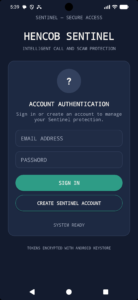
Input your email (preferably the one you used for the beta signup), then make a memorable password, save it in google password manager or somewhere else safe. Then hit “Create Sentinel Account.”
Inside the app:
Once inside the app after account creation, scroll down to the bottom of the page:
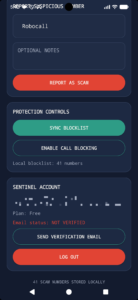
Under where it says: “Protection Controls,” click: “Sync Block-list.” Then click: “Enable Call Blocking.” Then click: “Send Verification Email.” After that, go back to your email and click the link, then return to the app. Then the Email Status will flip to: “Verified.”
Testing Report/View Numbers
Test a known scam number (E.G: “+13692166437”), It should say: “Blocked: +13692166437 116 total reports, risk 100” (Note: The total reports will change as the app develops) Then after you view the number, test reporting it: Under: “Report Suspicious Numbers”, click where it says Robocall, and (If using number above), click “Financial”, then (Optionally) input notes.
That's It!
Thank you for testing and setting up the beta, have a good one,
-Hencob_Gaming
hencob.com is proudly powered by WordPress